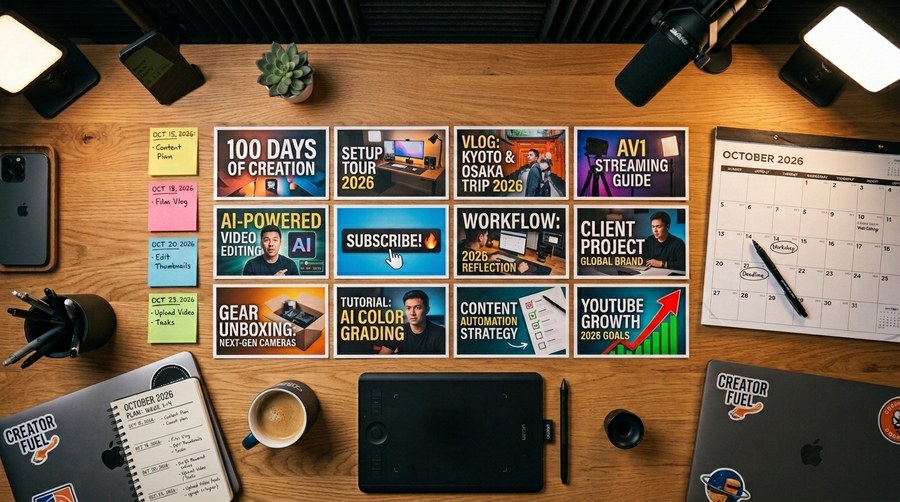
The biggest time drain in thumbnail creation is not the design itself, it is starting from scratch every time. Top creators have solved this problem with a batch workflow: a system that produces multiple thumbnails in a single concentrated session rather than one thumbnail per video day-of-upload. This approach reduces per-thumbnail time by 60–80% while simultaneously improving consistency and quality.
Why Most Creators Waste Time on Thumbnails
The typical creator thumbnail workflow looks like this: plan the video, shoot the video, edit the video, then, often hours before upload, scramble to design a thumbnail. This positions thumbnail creation as an afterthought, a final box to check rather than a strategic creative decision. The result is rushed designs, inconsistent quality, and thumbnails that underperform because they were created in decision-fatigue mode after an already exhausting production day.
The Batch Photography Session
The foundation of an efficient thumbnail workflow is the batch photo session. Instead of photographing yourself for each video individually, dedicate one 90-minute session per month to shooting 20–30 thumbnail-ready images in different expressions, poses, and positions. This gives you a library of raw assets that can be composited into thumbnails for the next 4–8 videos without any additional photography.
Setup requirements are modest: a clean background (paper roll or wall), a ring light or window light, a camera or smartphone on a tripod, and a remote shutter or timer. Shoot in burst mode. Capture a wide range of expressions for the same pose. The most experienced thumbnail creators shoot with 5–6 different "costume" changes (different shirts) to enable visual variety across episodes without reshoots.
Building a Template System
A template system is a set of 3–5 pre-designed thumbnail layouts with locked structural elements, background, text placement zones, font styles, color palette, and variable content slots for the specific image and text of each video. Instead of designing from scratch, you are choosing a template and filling in the variables.
Canva, Figma, and Photoshop all support template systems effectively. The key design decision is how many templates you need. Too few creates visual monotony; too many erodes the brand consistency that drives recognition. Three templates, a "face-forward" layout, a "text-dominant" layout, and a "result/object" layout, covers most video types for most channels.
The Monthly Thumbnail Calendar
At the start of each month, plan your upcoming video topics. For each video, note the thumbnail type (which archetype fits best), the key visual element, and the 3–5 word text. This planning session takes 20–30 minutes and transforms thumbnail design from reactive to proactive. When the batch photo session happens, you know exactly which expressions and poses you need. When you sit down to design, you know which template to open and what text to enter.
Batch Design Session Structure
Select photos (15 min), pull the best 1–3 images from your photo library for each upcoming video
Background generation or selection (10 min), choose or generate backgrounds for all videos at once
Template population (30–45 min), open each template, drop in the photo and background, add text
Review and export (15 min), squint test all thumbnails, shrink to mobile size, export at correct specs
A creator uploading 4 videos per month can design all 4 thumbnails in a single 90-minute session using this workflow, compared to 30–60 minutes per video in an ad-hoc approach.
Asset Organization
The batch workflow only works if assets are organized. Use a consistent folder structure: one folder per month, sub-folders for raw photos, backgrounds, and finished thumbnails. Name finished thumbnails with the video title and upload date. A well-organized asset library also makes A/B testing easier, you can quickly pull alternative assets to create a second thumbnail variation without starting from scratch.
Review Your Batch Designs Before Upload
Use Thumbnail Swiper's split test and preview tools to evaluate your batch-designed thumbnails against each other and in the YouTube feed.
Have a question, suggestion, or found a bug? Send us an email and we'll get back to you as soon as possible.
jaythecreator.info@gmail.com
Click Copy or highlight to select
About Us
Thumbnail Swiper, Built for YouTube Creators
Thumbnail Swiper is a free, no-login toolkit built for YouTube creators who take their thumbnails seriously. Everything runs in your browser, fast, private, and always free.
What We Built
We noticed that the tools creators actually needed, downloading thumbnails, previewing how they look on YouTube, split-testing ideas, and reverse-engineering competitor designs, were either paywalled, or just didn't exist. So we built them all in one clean, fast, free tool.
What You Can Do Here
Download any YouTube thumbnail, in every available resolution, instantly
Preview your thumbnail on a realistic YouTube home feed mockup
Split test up to three thumbnails side by side before you publish
Recreate a competitor's thumbnail using an AI prompt you can paste into any image generator
Our Philosophy
No account required. No watermarks. No limits on downloads. We believe creator tools should be accessible to everyone, whether you have 100 subscribers or 10 million.
Privacy First
We may collect limited data to improve your experience. We are committed to handling any such data responsibly and will always be transparent about what we collect and why. See our Privacy Policy for full details.
Contact
Have a suggestion, found a bug, or want to collaborate? Use the Contact link in the footer. We read everything.
Privacy Policy
Effective date: June 2026
The short version: Thumbnail Swiper does not directly collect personal information through the tool. Third-party services like Google AdSense may use cookies for ad personalization. See Section 4 for details on how to opt out.
1. Who We Are
Thumbnail Swiper is a free online tool that allows users to download YouTube video thumbnails and access related creator utilities. This policy explains our approach to your privacy.
2. Information We Currently Collect
As of the effective date of this policy, Thumbnail Swiper does not directly collect personal information through the tool itself. However, third-party services we use (such as Google AdSense) may collect certain data automatically. We do not currently collect or store:
Your name, email address, or any personal identifiers
YouTube URLs you paste into the tool
Images you upload for the preview or split-test features
Your IP address or location data directly
Browser fingerprints or device information directly
This may change in the future. If we begin collecting additional data, this policy will be updated accordingly.
3. How the Tool Works
Core functionality, thumbnail fetching, image preview, split testing, and prompt copying, is designed to run in your browser. When you paste a YouTube URL, your browser retrieves the thumbnail directly from YouTube's public servers (i.ytimg.com). We do not intentionally store or log the content of your searches. Third-party services embedded in the site (such as advertising networks) may operate independently and are subject to their own privacy policies.
4. Third-Party Services & Advertising
Thumbnail images are fetched from YouTube's public CDN (ytimg.com), which is operated by Google. Your use of YouTube content is subject to Google's Privacy Policy. We have no control over and no visibility into those requests.
Google AdSense: Thumbnail Swiper may use Google AdSense to display advertisements. Google AdSense is a third-party advertising service operated by Google LLC. Google and its partners may use cookies and similar tracking technologies to serve ads based on your prior visits to this site or other sites on the internet. These cookies allow Google and its partners to serve ads to you based on your visit to Thumbnail Swiper and/or other sites on the internet.
You may opt out of personalized advertising by visiting Google's Ads Settings, or by visiting aboutads.info to opt out of a third-party vendor's use of cookies for personalized advertising.
Thumbnail Swiper is not directed at children under 13. We do not knowingly collect any information from children.
6. Changes to This Policy
If this policy changes materially, we will update the effective date above. Continued use of Thumbnail Swiper after any changes constitutes acceptance of the updated policy.
7. Contact
Questions about this privacy policy? Since we collect no user data, there is no account system or data request process. For general inquiries, use the Contact link in the footer of this site.
Terms & Conditions
Effective date: June 2026
The short version: Thumbnail Swiper is a free tool for personal and research use. Use it responsibly. We provide it as-is with no guarantees. Don't use it to infringe copyright or violate YouTube's terms.
1. Acceptance of Terms
By accessing or using Thumbnail Swiper ("the Site," "the Tool"), you agree to be bound by these Terms and Conditions. If you do not agree, please do not use the Site. We reserve the right to update these terms at any time, continued use of the Site after changes constitutes acceptance.
2. What Thumbnail Swiper Does
Thumbnail Swiper is a browser-based utility that retrieves publicly available thumbnail images from YouTube's content delivery network (ytimg.com). It also provides creator tools including a YouTube feed preview mockup, a thumbnail split-test viewer, and an AI prompt generator for thumbnail recreation. All processing occurs client-side in your browser.
3. Permitted Use
You may use Thumbnail Swiper for:
Personal research and educational purposes
Downloading thumbnails of videos you own or have rights to
Analyzing thumbnail design and composition for creative inspiration
Preview and testing of your own thumbnail content
4. Prohibited Use
You agree not to use Thumbnail Swiper to:
Download, reproduce, or distribute copyrighted thumbnail images without the permission of the rights holder
Scrape, automate, or bulk-download thumbnails in a manner that violates YouTube's Terms of Service
Use downloaded content for commercial purposes without appropriate rights or licenses
Misrepresent another creator's content as your own
Attempt to reverse-engineer, disrupt, or interfere with the Site
Use the Site for any unlawful purpose
5. Intellectual Property
YouTube thumbnails retrieved through Thumbnail Swiper are the intellectual property of their respective creators and/or YouTube (Google LLC). Thumbnail Swiper does not claim ownership over any thumbnail content retrieved through the tool. Downloading a thumbnail does not transfer any rights to that content. You are solely responsible for ensuring your use of any downloaded content complies with applicable copyright law and YouTube's Terms of Service.
6. Disclaimer of Warranties
Thumbnail Swiper is provided "as is" and "as available" without warranties of any kind, express or implied. We do not guarantee that:
The Site will be available at all times or free of errors
Thumbnails will always be retrievable (YouTube may change its CDN structure at any time)
The tool will meet your specific requirements
7. Limitation of Liability
To the fullest extent permitted by law, Thumbnail Swiper and its operators shall not be liable for any direct, indirect, incidental, consequential, or punitive damages arising from your use of the Site or any content downloaded through it. This includes, but is not limited to, copyright disputes, loss of data, or business interruption.
8. Third-Party Services
Thumbnail Swiper retrieves thumbnail images from YouTube's public CDN. We are not affiliated with, endorsed by, or in any way officially connected to YouTube, Google LLC, or any of their subsidiaries. "YouTube" is a trademark of Google LLC. Your use of YouTube content is governed by YouTube's Terms of Service.
9. Changes to the Service
We reserve the right to modify, suspend, or discontinue Thumbnail Swiper at any time without notice. We shall not be liable to you or any third party for any such modification, suspension, or discontinuation.
10. Governing Law
These Terms shall be governed by and construed in accordance with applicable law. Any disputes arising from your use of Thumbnail Swiper shall be resolved through good-faith negotiation before pursuing any formal legal remedy.
11. Contact
For questions regarding these Terms and Conditions, please use the Contact link in the footer of this site.

 ThumbnailSwiper